
Getting Started
An easy, simple way to secure our accounts without any hassle.


Download DUO Mobile
Go to the app store/google play store and search for DUO Mobile and download.

Scan QR Code
Once installed, it will prompt you to enter an account. After which, you will see an option to scan a QR code.

Enter the 6-Digit 2FA Code
Scan the QR code and key in the 6-digit code after it’s imported.
1. Go to Account Settings > Account
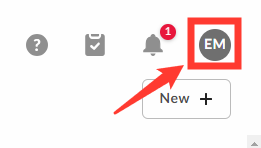
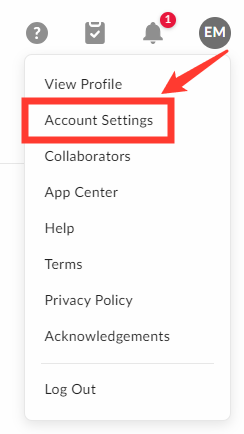
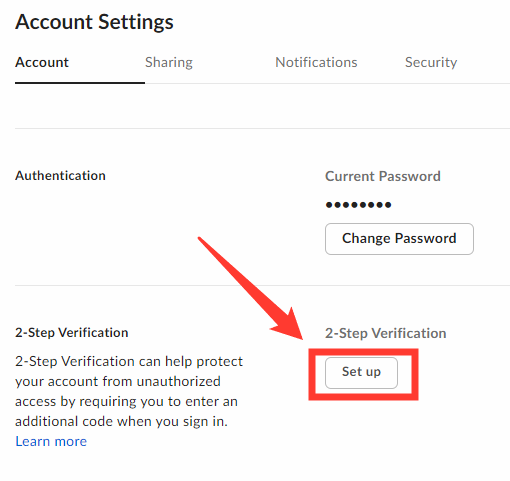
2. In the 2-Step Verification section, click Set Up
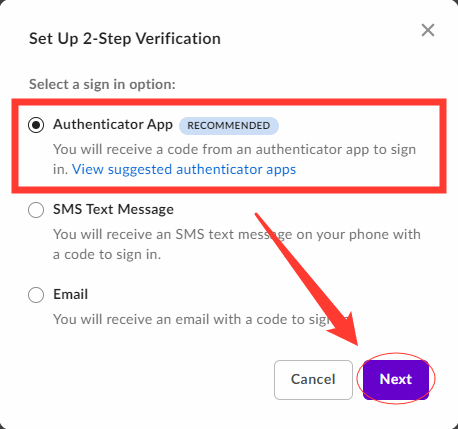
3. Select Authentication App (recommended) and click Next.
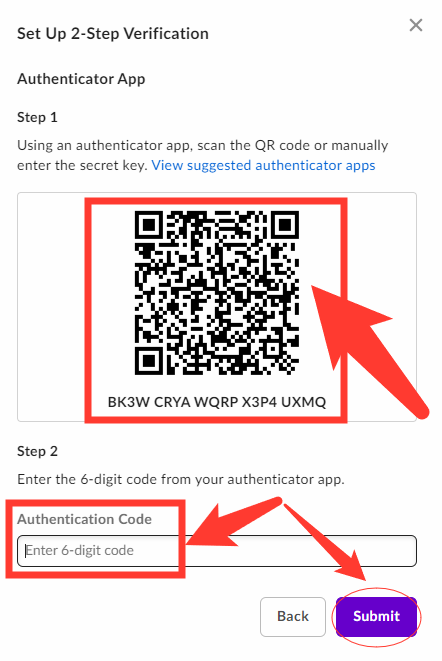
4. Open the authentication app on your phone and scan the QR code. (You can also enter the secret key located under the QR code into the authenticator app manually.)
5. Enter the code you received in the authenticator app and click Submit.
6. Enter a phone number for verification, which would be used by Box support to verify your identity in the case where you are not able to authenticate in the app, and click Submit.
7. Copy the backup codes. Once copied, paste them into a file only you have access to and save the file somewhere secure.
8. Click Complete.
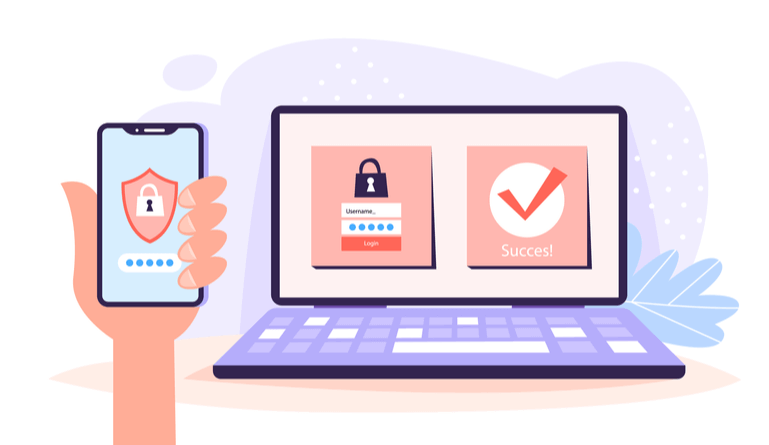
To enable authentication app multi-factor authentication for your individual account:
- Go to Account Settings > Account.
- In the 2-Step Verification section, click Set Up. (Note: You will not see this section if your organization uses single sign-on (SSO) for authentication.)
- Select Authentication App (recommended) and click Next.
- Open the authentication app on your phone and scan the QR code. (You can also enter the secret key located under the QR code into the authenticator app manually.)
- Enter the code you received in the authenticator app and click Submit.
- Enter a phone number for verification, which would be used by Box support to verify your identity in the case where you are not able to authenticate in the app, and click Submit.
- Copy the backup codes. Once copied, paste them into a file only you have access to and save the file somewhere secure.
- Click Complete.